HaywoodTech Conditional Shipping for WooCommerce
Table rate and conditional shipping from one rules engine. Write rules that read like sentences, test them on real carts before you save, and see exactly why every order paid what it did.
- Free, GPL licensed
- WordPress 7.0+
- WooCommerce 11.0+
- PHP 7.4+
delivery
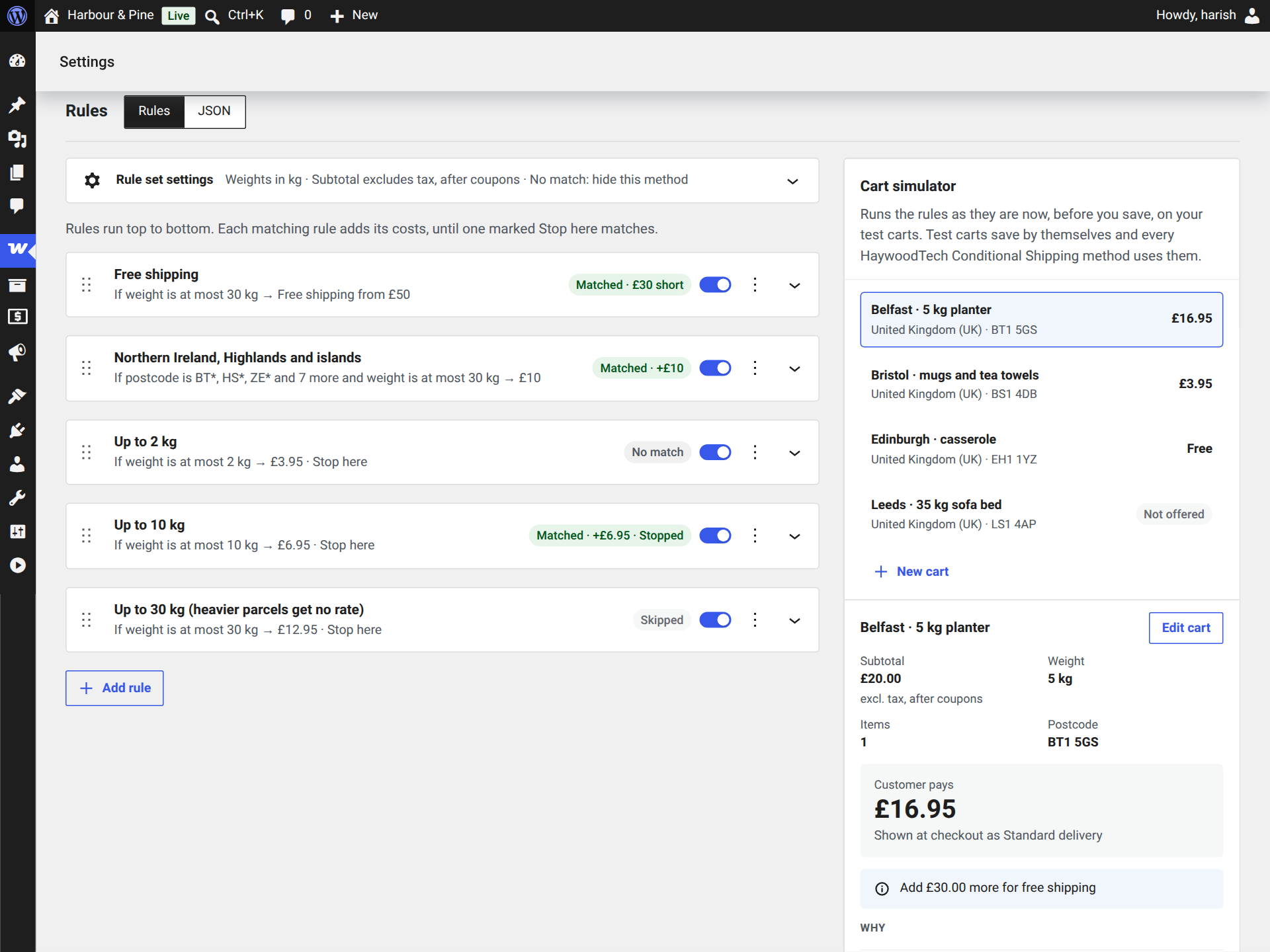
- 1Free shipping from £50£30.00 short
- 2Northern Ireland, Highlands and islands+£10.00
- 3Up to 2 kgNo match
- 4Up to 10 kg Stop here+£6.95
- 5Up to 30 kgNot reached
The UK region template pricing a test cart. Every rule that matches adds its cost, until one marked Stop here matches.
On this page
Quick start
From a fresh install to tested shipping rates in six steps.
-
Install the plugin
With WooCommerce active, go to Plugins › Add New Plugin, search for HaywoodTech Conditional Shipping, then click Install Now and Activate.
-
Add the method to a shipping zone
Go to WooCommerce › Settings › Shipping, open a zone (or add one), click Add shipping method and choose HaywoodTech Conditional Shipping.
-
Name it
Click Edit on the new method. The name is what customers see at checkout, such as “Standard delivery”. Set its tax status too.
-
Start from a template, or from scratch
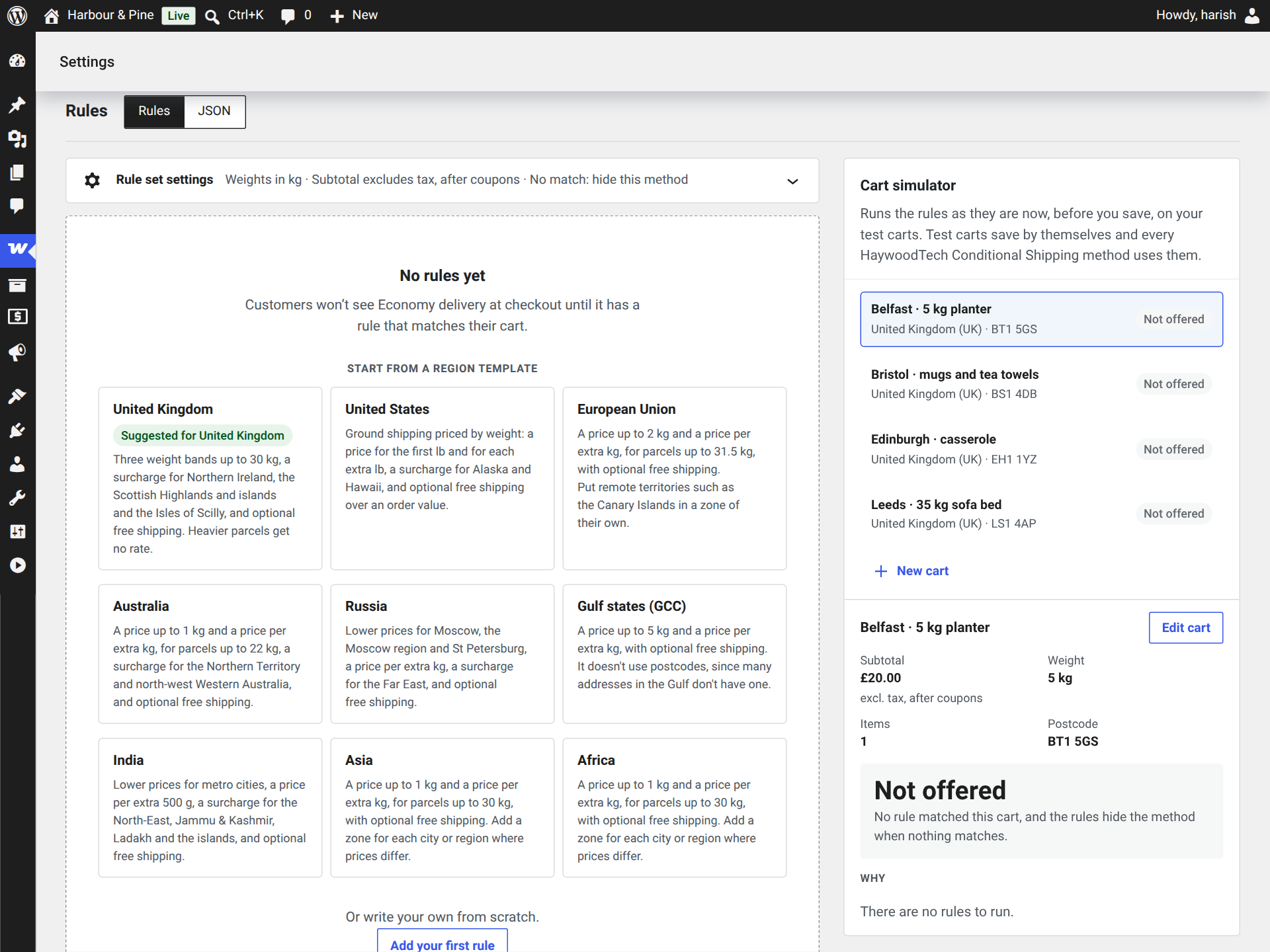
A new method shows region templates, with the ones for your zone first. Pick one, type your amounts and click Add these rules. Or click Add your first rule.
-
Try it on a test cart
In the cart simulator beside your rules, click New cart, add products from your store and an address. You see what that cart pays, and why, straight away.
-
Save changes
Click Save changes to put the rules live. Rules with errors are never saved, so checkout keeps using the rules it had.
Standard and Express in one zone? Add the method to the zone once for each option. Each has its own name and rules, and they share the same test carts.
How rules work
A method holds a list of rules. Each rule has conditions (when it applies) and actions (what it charges). At checkout the rules run from top to bottom:
- Every rule that matches adds its cost.
- A rule marked Stop here ends the list when it matches. That’s how weight bands work: the first band that fits wins.
- A free-shipping threshold that the cart reaches also ends the list, and the cost is zero.
- If no rule matches, the method isn’t offered. A gap in your rules never means free shipping by accident. You can choose to offer it free instead.
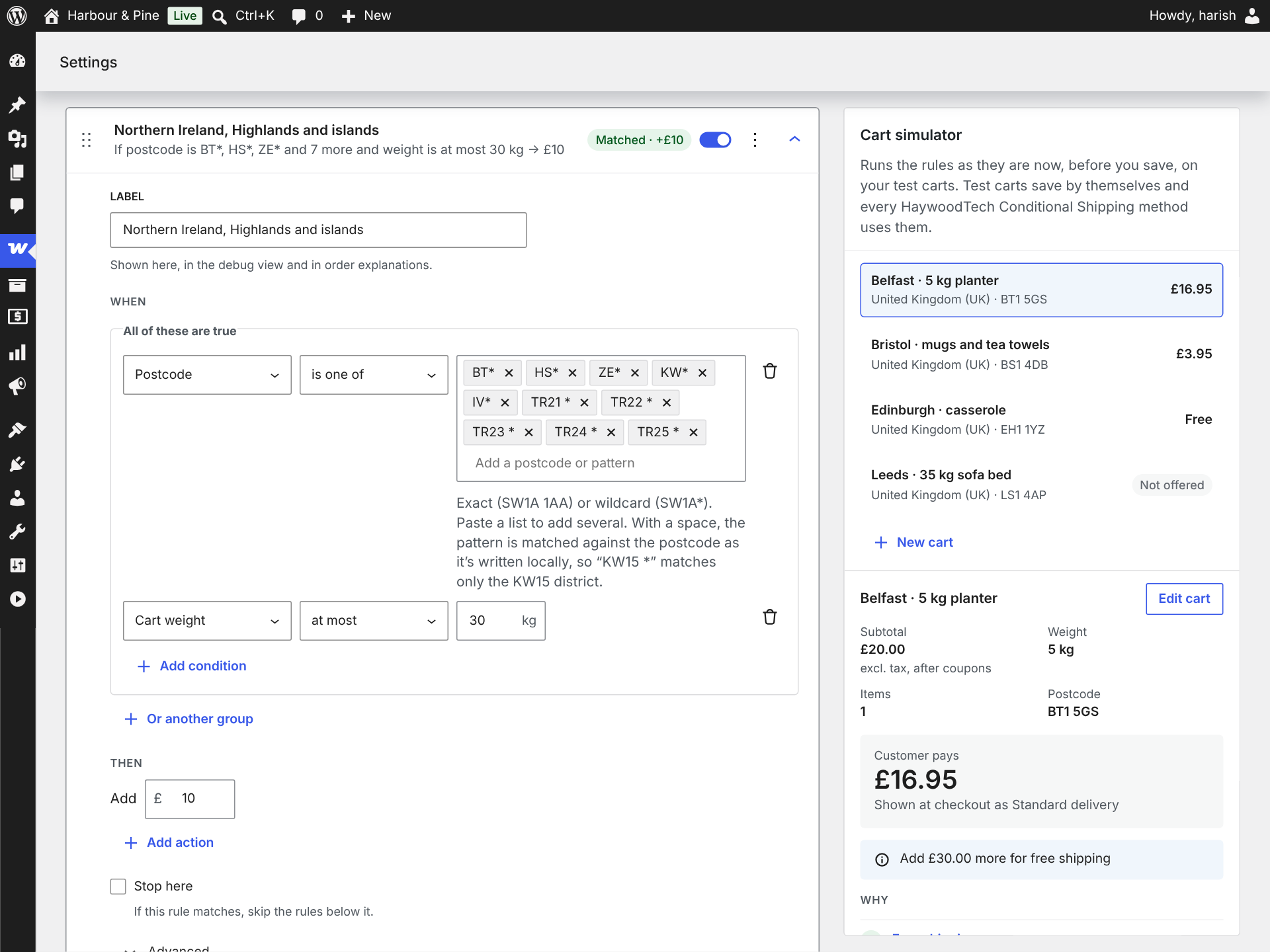
So a remote-area surcharge sits above the weight bands without Stop here, and adds to whichever band matches below it. Each rule reads as a sentence in the builder:
And, or
All the conditions in a group must be true. Click Or another group to add a second group: the rule matches when any one group is true. A rule with no conditions always matches, which makes it a good last rule for “everywhere else”.
Order, on and off
Drag a rule by its handle to move it, or use Move up and Move down in its menu. The switch on each rule turns it off without deleting it.
The final cost
After the rules run, the cost is kept within any minimum and maximum a matching rule set, rounded to your store’s price decimals, and never goes below zero.
Conditions
| Condition | Compares with | Good to know |
|---|---|---|
| Cart subtotal | more than, at least, less than, at most, exactly, between | With or without tax, before or after coupons, as the rule set settings say. |
| Cart weight | more than, at least, less than, at most, exactly, between | In the rule set’s unit. Product weights are converted from your store’s unit. |
| Number of items | more than, at least, less than, at most, exactly, between | Counts quantities, so 3 mugs are 3 items. |
| Shipping class | any item is in, every item is in, no item is in | A variation set to “Same as parent” uses the parent’s class. |
| Product category | any item is in, every item is in, no item is in | Includes subcategories unless you switch that off. |
| Postcode | is one of, is not one of | Exact postcodes, wildcards and ranges. See postcode patterns. |
Actions
| Action | What it does |
|---|---|
| Flat cost | Adds a fixed amount. |
| Cost per weight or item | Adds an amount for every step of weight or items over a starting point, such as £2 for every 1 kg over 2 kg. It can count every item, or only items in some shipping classes or categories. Part steps are charged in full or pro rata. |
| Free shipping over an amount | Makes shipping free when the subtotal reaches the amount, and stops the rules below it. Until then, the cart can tell customers how much more they need. |
| Minimum cost | Charges at least this much. When several matching rules set one, the earliest wins. |
| Maximum cost | Charges at most this much. When several matching rules set one, the earliest wins. |
A rule can have several actions. They apply in order, so a rule can add a flat £40 and then £20 for every 0.5 kg over 0.5 kg.
Rule set settings
Above the rules, Rule set settings opens the options that apply to every rule in the method:
- Weights in: kg, g, lbs or oz. Changing it converts every weight in your rules, so “over 10 kg” doesn’t quietly become “over 10 lbs”.
- Subtotal: including or excluding tax, before or after coupons. Subtotal conditions and free-shipping thresholds both use it.
- When no rule matches: Hide this method (the default) or Offer it free.
- Advanced: the rule set’s name and ID, and its currency. Amounts are in your store’s base currency, and the builder warns you if they don’t match.
Region templates
A method with no rules offers starter rules for nine regions. Templates for your zone’s countries come first, marked as suggested.
- United States
- United Kingdom
- European Union
- Australia
- Russia
- Gulf states
- India
- Asia
- Africa
Each template sets out the rules stores in that region usually start with: weight bands, a surcharge for remote postcodes, and free shipping over an order value. You type the amounts in your own currency. Suggested amounts appear when your store uses the template’s currency.
- Leave the free-shipping amount empty to leave that rule out.
- Nothing goes live until you click Save changes, and the simulator prices the new rules straight away.
- The remote-area postcode lists are a starting point. Add the areas your carrier also surcharges.
Test carts and the simulator
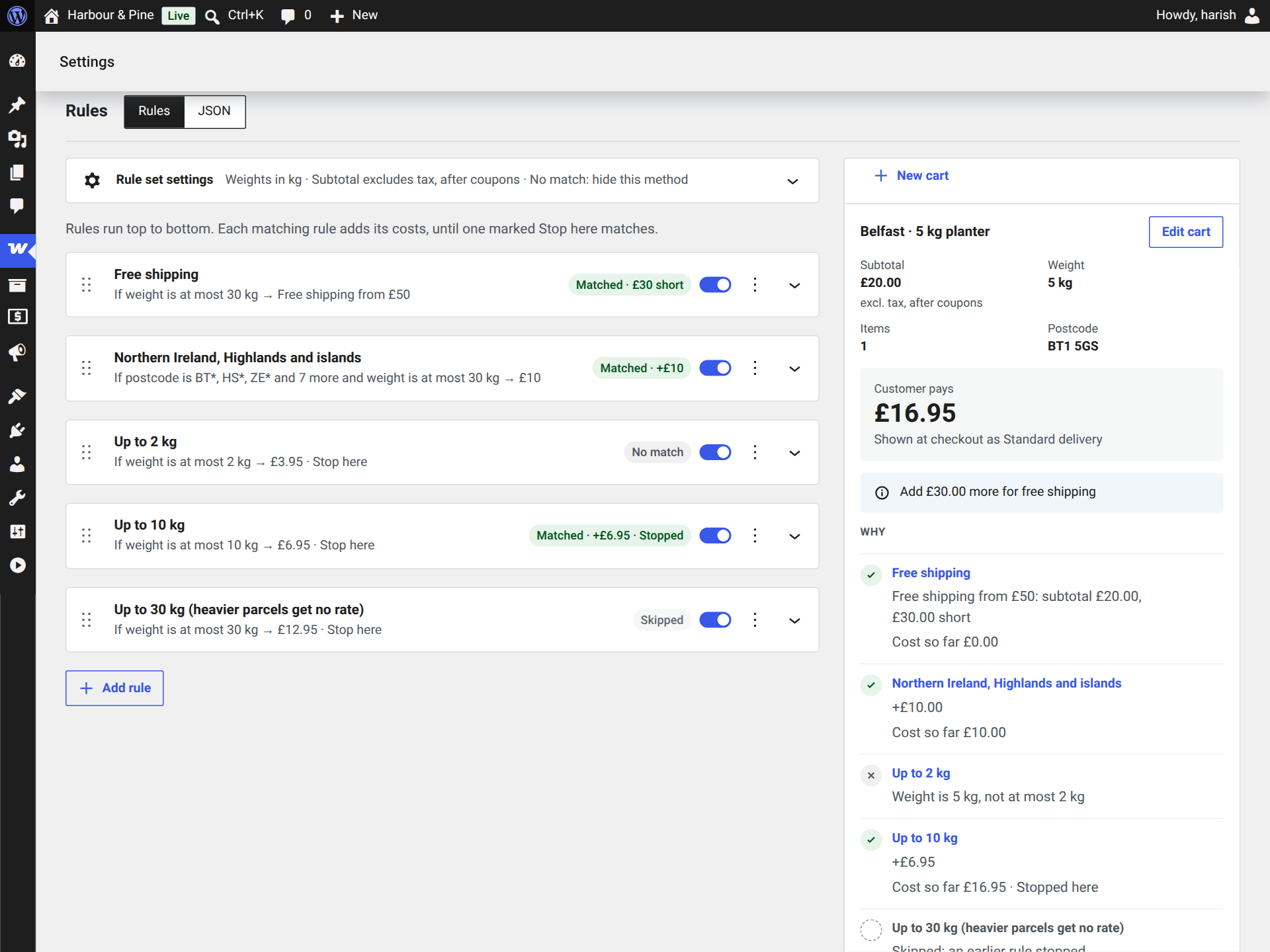
The cart simulator sits beside your rules and prices every test cart again each time you change something, before anything is saved.
Building a test cart
- Add products and variations from your store with a quantity. They’re measured exactly as checkout measures them: weights, shipping classes, categories and tax.
- Or add a custom item with a name, quantity, price, weight, shipping class and categories, to test a case your catalogue doesn’t have yet.
- Set the address (country, state and postcode) and an optional discount.
Reading the result
The selected cart shows what the rules measured (subtotal, weight, items and postcode), what the customer pays, the “Add X more for free shipping” amount when there is one, and a line for every rule saying whether it matched and why. Each rule card in the builder also shows what it did for that cart.
If the cart’s address is outside the method’s zone, the simulator says so: checkout wouldn’t offer the method there at all.
Test carts save by themselves and every HaywoodTech Conditional Shipping method on your store shares them. You can keep up to 20 carts with up to 50 lines each, so the simulator stays quick.
Why an order paid what it did
On the order screen
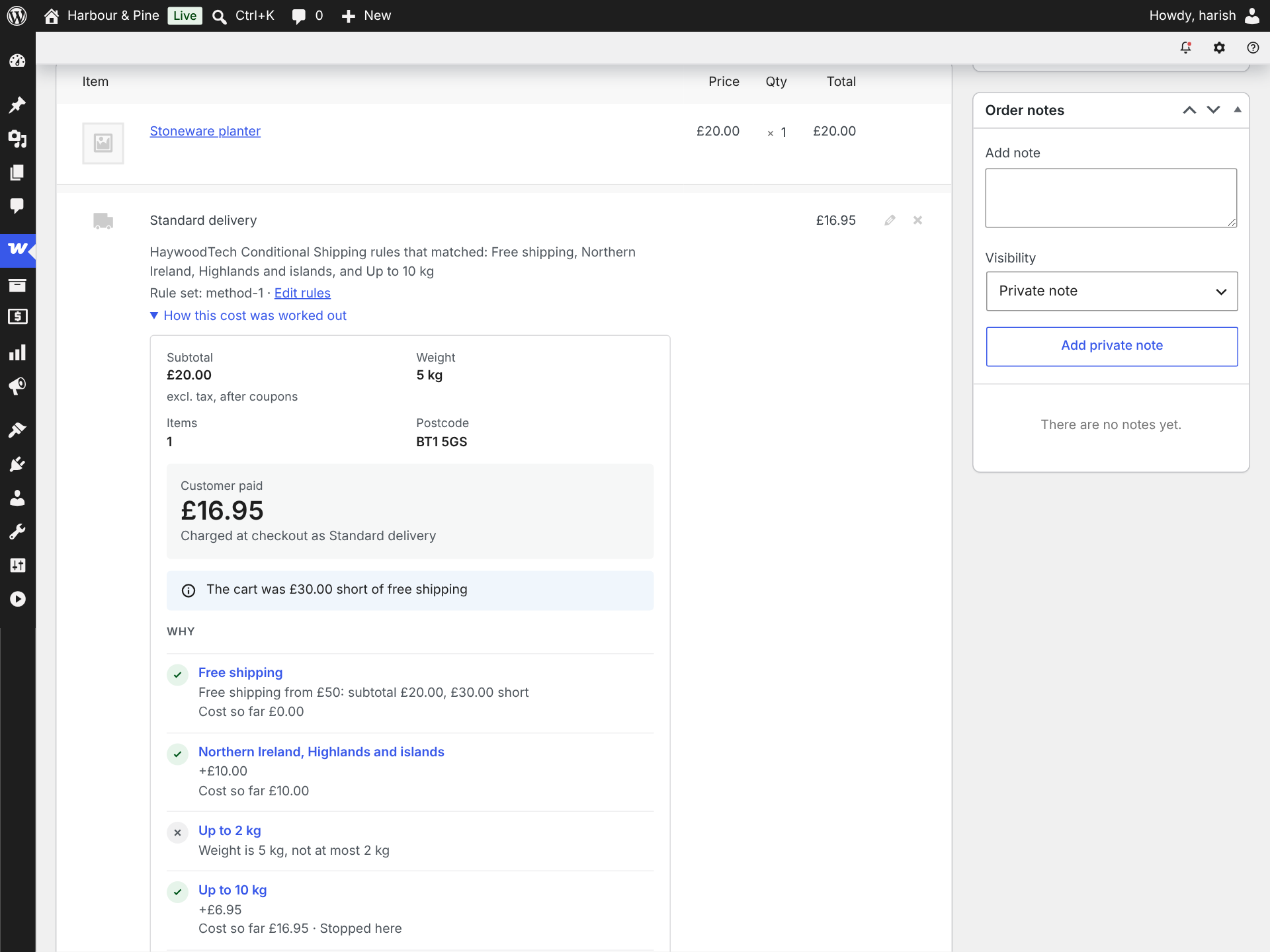
Under each shipping line the plugin priced, you see the rules that matched and a link to edit them. Open How this cost was worked out to see what the rules measured and what every rule did, exactly as they were when the order was placed, even if you’ve changed the rules since.
On your own cart
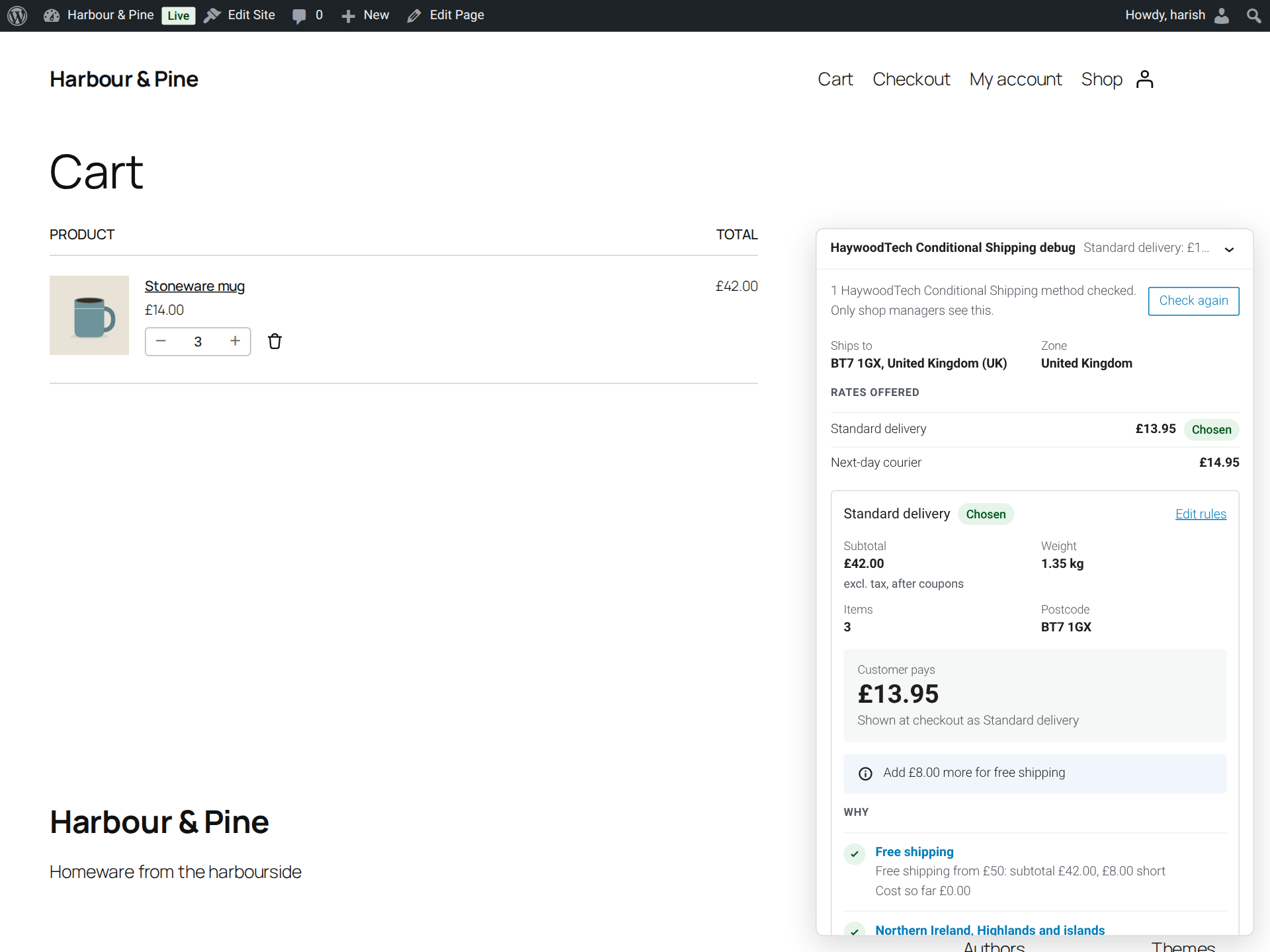
Turn on Debug panel for shop managers under WooCommerce › Settings › Shipping › Shipping options. While you’re logged in as a shop manager, a panel on the cart and checkout pages shows:
- where the cart ships to and which zone WooCommerce matched;
- every rate offered, and which one is chosen;
- for each HaywoodTech Conditional Shipping method in the zone, its answer and the reason for every rule.
Customers never see the panel. It’s off by default.
Free-shipping notice
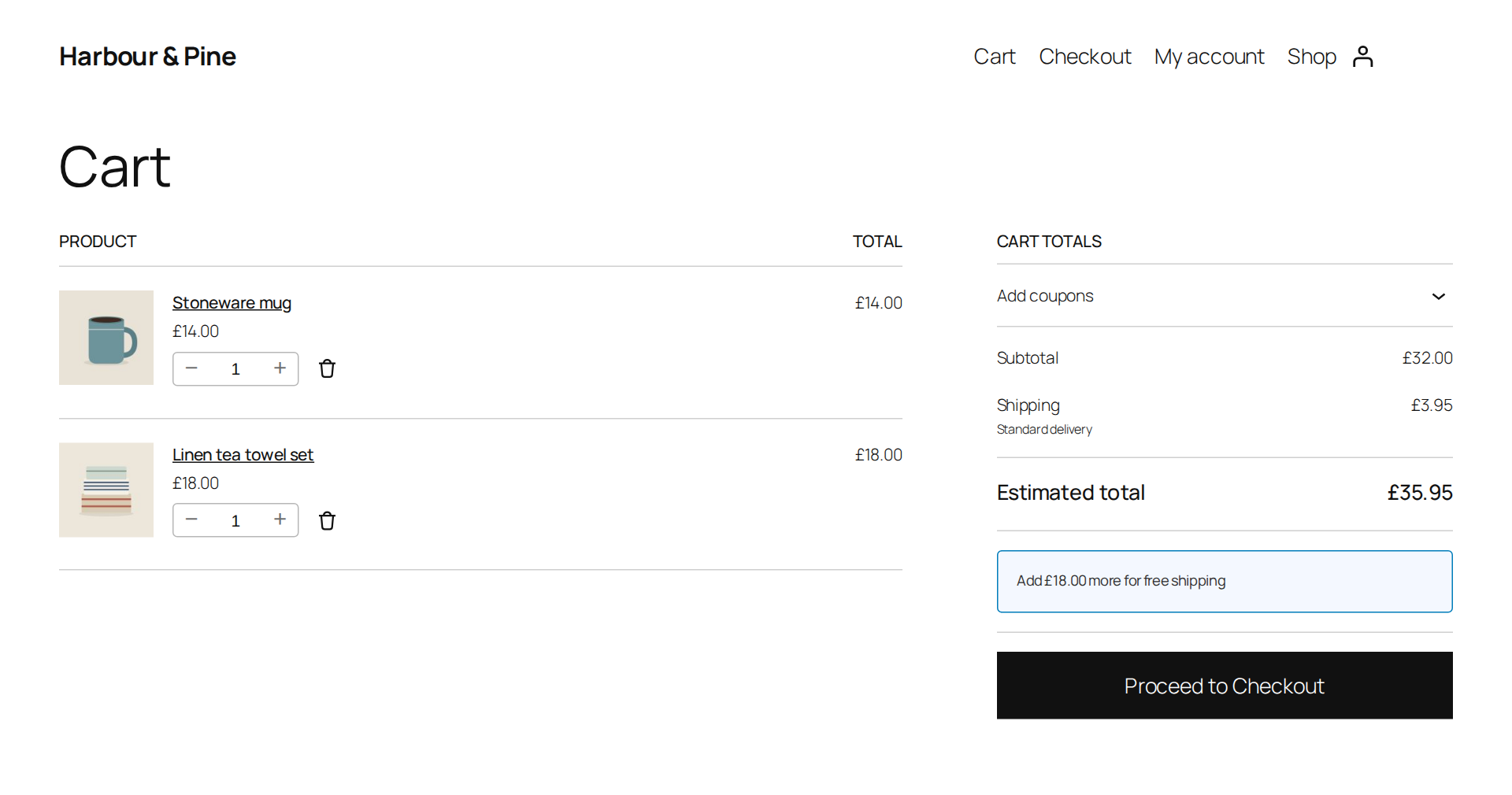
When a rule offers free shipping over an amount and the cart hasn’t reached it, the cart tells the customer how much more to add: Add £30.00 more for free shipping. It appears in both the classic cart and the Cart block, and updates as the cart changes.
If several methods have a threshold, the smallest amount is shown. Turn it off with Free-shipping notice in the cart under WooCommerce › Settings › Shipping › Shipping options.
Postcode patterns
Postcode conditions take a list of patterns. Paste a list to add several at once. Matching ignores upper and lower case.
| Pattern | Example | Matches |
|---|---|---|
| Exact | 90210 | That postcode. Spaces and hyphens are ignored, so SW1A1AA matches SW1A 1AA. |
| Wildcard | SW1A* | Every postcode starting with SW1A. |
| Range | 90200...90299 | Postcodes made of digits from the first number to the second, both included. A postcode with a different number of digits doesn’t match. |
| With a space | KW15 * | Compared with the postcode as it’s written locally, so it matches KW15 1AB but not KW1 5AB. |
The builder’s help text shows examples in your store’s own country format.
Editing rules as JSON
The Rules and JSON switch above the rules shows the same rules as text. Use Copy JSON to send them to a developer or support, or paste a rule set in. If the JSON doesn’t parse, the builder shows where and stays on the JSON view.
If the builder can’t load in your browser, the settings page shows the JSON editor instead, so you can always edit your rules. Rules with errors are never saved, from either view.
For developers
Checkout, the cart, the simulator and the debug panel all price through the same rules engine, so they always agree. These hooks let you adjust it:
| Hook | Arguments | Use it to |
|---|---|---|
hwtcs_cart_contextfilter | array $cart, array $package, ShippingMethod $method | Change what the rules see before a cart is priced, for example to convert amounts back to the base currency when a currency switcher has converted them. |
hwtcs_free_shipping_noticefilter | string $message, float $remaining | Change the notice, or return an empty string to hide it. The amount is in the base currency. |
hwtcs_register_typesaction | Registry $registry | Add your own condition and action types. |
For example, to change the wording of the notice:
add_filter( 'hwtcs_free_shipping_notice', function ( $message, $remaining ) {
	return sprintf( 'Spend %s more and shipping is on us.', wc_price( $remaining ) );
}, 10, 2 );
The plugin works with High-Performance Order Storage and with the cart and checkout blocks. Each order’s shipping line keeps what priced it as hidden order item meta.
Troubleshooting
The method doesn’t show at checkout
- No rule matched the cart. By default the method is then hidden. Add a last rule with no conditions for “everywhere else”, or set When no rule matches to Offer it free.
- The address is in another zone. WooCommerce picks one zone per address, and only that zone’s methods are offered. The simulator warns you when a test cart is outside the method’s zone.
- Your last change wasn’t saved. Rules with errors are turned away with the problems listed, and checkout keeps the rules it had.
- Another plugin removed the rate. The debug panel says so when the rules offer the method but it isn’t among the cart’s rates.
A cart pays a different amount from what I expected
Open the cart with the debug panel on, or rebuild it as a test cart. The reason for every rule shows which condition didn’t fit. Check the subtotal setting (tax and coupons) and the rule set’s weight unit first: they cause most surprises.
Does it work with the cart and checkout blocks?
Yes. The blocks and the classic cart and checkout get the same rates, and the free-shipping notice appears in both carts.
Does it work with currency switchers?
Rule amounts are in your store’s base currency, and most currency switchers convert shipping rates themselves. If yours also converts cart totals, use the hwtcs_cart_context filter to convert them back before the rules run, and hwtcs_free_shipping_notice for the notice.
Does it work in my country, currency and units?
Yes. Rules remember the weight unit they were written in, amounts are in your store’s currency, and postcode rules follow your country’s format. Nothing assumes a country.
Privacy and uninstalling
The plugin doesn’t contact any external service. Your rules, test carts and settings stay in your WordPress database.
Deleting the plugin from Plugins › Installed Plugins removes its two settings and the test carts. Your shipping methods stay in their zones with their rules, as WooCommerce’s own methods do, so reinstalling brings your setup back. Deactivating removes nothing.